Syncthing Conflict Files and .stignore (v2.1.5)
In a conflict copy's name, the device ID belongs to the device whose version won; the copy holds the losing edit. And .stignore is not synced: its patterns only apply on the device where you wrote it.
You open a synced folder and find notes.sync-conflict-20260925-060144-US3TWHL.md
next to notes.md. The obvious guess is that device US3TWHL wrote the conflict
copy. In my test, it’s the other way round: the ID in the name belonged to the
device whose version won, and the copy held the losing device’s edit.
Conflict copies and .stignore are the two places where Syncthing’s behaviour most
often surprises people, so I set up two Syncthing instances and forced eight cases on
purpose: two-sided edits in both directions, edit versus delete, conflict copies
turned off, and four ignore-pattern situations. Every result below comes from the
test log and a directory listing on both sides.
Short answer (Syncthing v2.1.5, tested 2026-09-25):
| Situation | What happened |
|---|---|
| Both devices edited the same file while disconnected | The edit with the newer modification time won on both sides. The other edit was saved as name.sync-conflict-<date>-<time>-<ID>.ext on both devices |
The <ID> in the conflict name | The short ID of the device whose version won, not the device whose edit is inside the copy |
The <date>-<time> in the conflict name | When Syncthing resolved the conflict, not when anyone edited the file. The copy keeps the loser’s original modification time |
| One device deleted, the other edited | The edit won. The file came back on the deleting side, and no conflict copy was made |
maxConflicts set to 0 on both devices | The losing edit was discarded. No conflict copy on either side |
.stignore written on one device only | Not synced. The pattern only applied on that device |
Shared patterns via #include | Worked. The included file syncs like any other file |
| Another device deletes a folder that holds ignored files | The folder was not deleted, and the synced folder showed Out of Sync with a failed item. Adding the (?d) prefix to the pattern cleared it |
| Ignoring a folder that was already synced | New files in it stopped syncing, and deleting files in it stopped syncing too. The other side kept the old copies |
What the official docs say
The syncing page (written for
v2.1.0, read 2026-09-24) describes the naming as
<filename>.sync-conflict-<date>-<time>-<modifiedBy>.<ext> and says:
The file with the older modification time will be marked as the conflicting file and thus be renamed.
It doesn’t say whose ID <modifiedBy> is. I checked the v2.1.5 source
(lib/model/folder_sendrecv.go): when a local file is renamed for a conflict, the
suffix comes from the ModifiedBy field of the incoming file, which is the version
that won. The timestamp is taken with time.Now() at the moment of the rename. My
test matched both.
The ignoring page (written for
v2.1.0, read 2026-09-24) says the .stignore file “will never be synced to other
devices, although it can #include files that are synchronized between devices”, and
that a (?d) prefix “enables removal of these files if they are preventing directory
deletion”. The config page describes maxConflicts as “The maximum number of
conflict copies to keep around for any given file. The default is 10”, and says 0
“disables conflict copies altogether”. The page doesn’t mention that with 0, the
losing edit is simply gone. That’s what happened in my test.
The setup
- Two Syncthing v2.1.5 instances on one Mac,
inst1andinst2, using the official darwin-arm64 builds. Both listen on 127.0.0.1 only; global discovery, local discovery, relays and NAT traversal are off. - One new folder,
t4, shared between them. Send & Receive on both sides, file versioning off,maxConflictsat the default 10. - I turned the file watcher off and triggered every rescan by hand, so the order of events didn’t depend on watcher timing.
- To make a real conflict, I paused the connection between the two devices, edited the same file on both, rescanned, then unpaused.
- All of this was driven by a Python script through the REST API. The script and the full log are my own test notes; the results below quote the log.
inst1’s short ID starts with V3OZYEV, inst2’s with US3TWHL.
Test 1: who wins a conflict, and what the file name means
Case A. While disconnected, inst1 wrote “edited on inst1” to caseA.md with a
modification time of 05:59:39. inst2 wrote “edited on inst2” with 06:00:39, one
minute later. I reconnected at 06:01:42. A few seconds later both devices had:
caseA.md                                         "edited on inst2"   mtime 06:00:39
caseA.sync-conflict-20260925-060144-US3TWHL.md   "edited on inst1"   mtime 05:59:39
The newer edit (inst2) won. The conflict copy holds inst1’s text, yet its name ends in
US3TWHL, which is inst2.
Case B was the mirror image: this time inst1’s edit was newer.
caseB.md                                         "edited on inst1"   mtime 06:00:52
caseB.sync-conflict-20260925-060204-V3OZYEV.md   "edited on inst2"   mtime 05:59:52
Again the suffix is the winner (inst1, V3OZYEV) and the content is the loser’s.
Three things to take from this:
- Read the ID in a conflict name as “the device that won”. If you want to know who wrote the losing text, look at the other device.
- The time in the name is when the conflict was resolved (06:01:44, two seconds after reconnecting), not when anyone typed anything. The copy’s own modification time still shows the original edit time (05:59:39).
- The conflict copy is an ordinary file and it syncs. Both devices ended up with it. The docs say this is deliberate: the conflict is “just as much of a conflict everywhere else”.
Test 2: edit on one side, delete on the other
Case C. While disconnected, inst1 deleted caseC.md and inst2 edited it.
After reconnecting, both devices had caseC.md with inst2’s edited text, and there
was no conflict copy anywhere.
So in this case the edit won and the file came back on the device that deleted it. If you delete something and it reappears, check whether another device changed it while you were offline.
Test 3: maxConflicts = 0
Case D. I set maxConflicts to 0 on both devices through the REST config API
(maxConflicts is a per-folder option), then repeated case A. inst2’s edit was newer
again.
inst1: caseD.md   "edited on inst2"
inst2: caseD.md   "edited on inst2"
That was all. inst1’s text “edited on inst1” was not in any file on either device. File versioning was off, so nothing else kept it.
maxConflicts = 0 isn’t a way to hide conflicts. It means the older edit is
thrown away. If conflict files annoy you, delete them after you check them, or set
a small number like 1, rather than 0.
Test 4: .stignore stays on the device you wrote it on
Case E. I wrote *.log into .stignore on inst1 only, then created e1.log on
inst1 and e2.log on inst2.
inst1: caseE.md  e1.log
inst2: caseE.md  e2.log
.stignore itself never reached inst2, and the .log files didn’t move in either
direction. inst2 had no ignore pattern, but inst1 still didn’t accept e2.log. An
ignore pattern stops a device both sending and receiving matching files.
Test 5: sharing patterns with #include
Case F. On inst1 I created .stglobalignore containing *.bak. It’s a normal
file, so it synced to inst2 (checked: present). Then:
inst1 .stignore:   *.log
                   #include .stglobalignore
inst2 .stignore:   #include .stglobalignore
The effective patterns reported by GET /rest/db/ignores were *.log and *.bak
on inst1 and *.bak on inst2. A f1.bak made on inst1 stayed on inst1 and a
f2.bak made on inst2 stayed on inst2.
This is the pattern the docs suggest: put the rules you want everywhere in a synced
file and #include it from each device’s .stignore. Keep device-specific rules in
.stignore itself. The docs also note it’s an error if the included file doesn’t
exist, so create and sync the shared file before you add the #include line.
Test 6: ignored files block a folder delete, and (?d) fixes it
This is the one that leaves folders stuck.
Case G. Two folders, gdir and hdir, each with one normal file, synced to both
devices. On inst2 I put an ignored file into each: gdir/junk (ignored by a plain
junk pattern) and hdir/junk2 (ignored by (?d)junk2). Then I deleted both
folders on inst1.
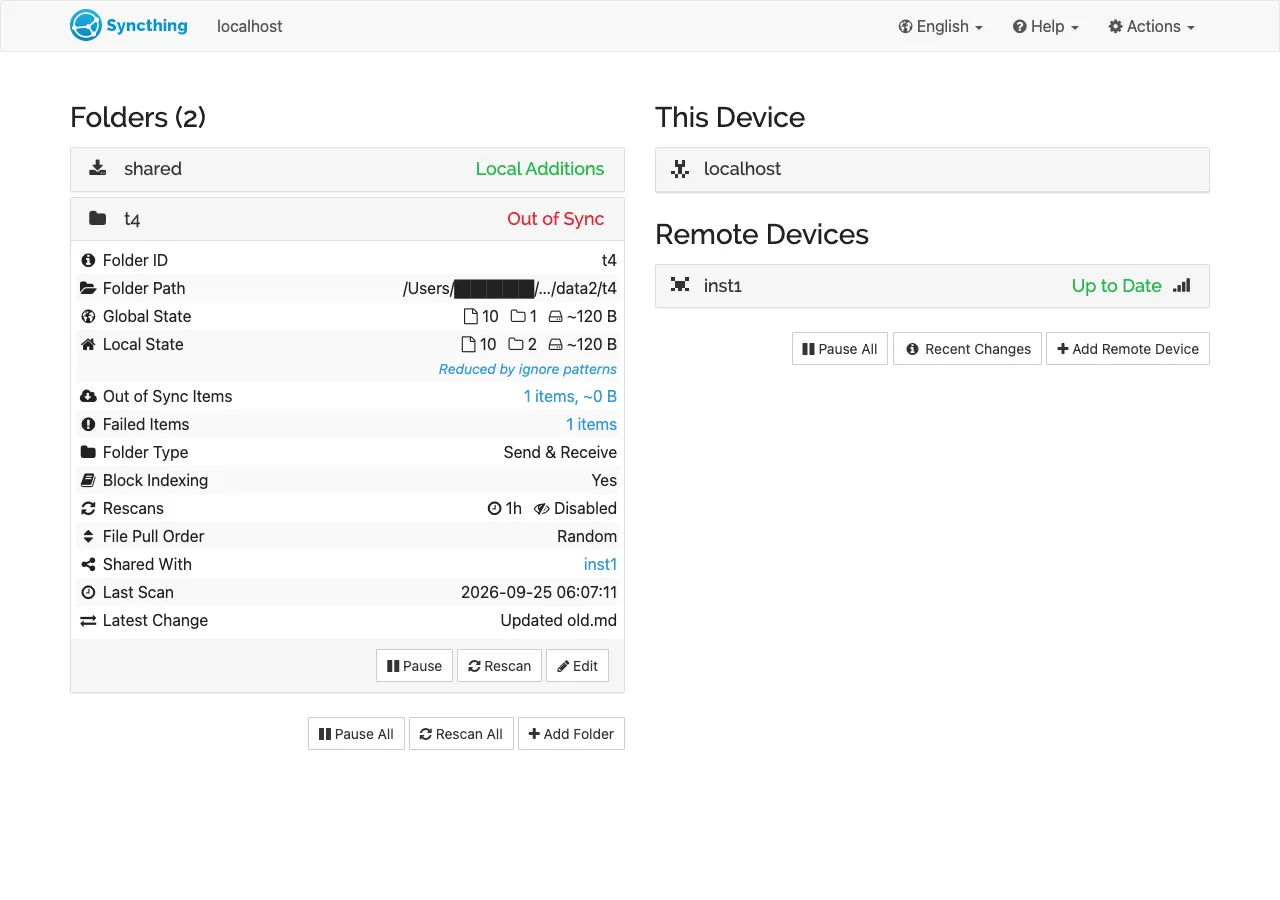
hdirwas deleted on inst2, includingjunk2.gdirstayed on inst2, containing onlyjunk.
inst2’s folder switched to Out of Sync with one failed item:
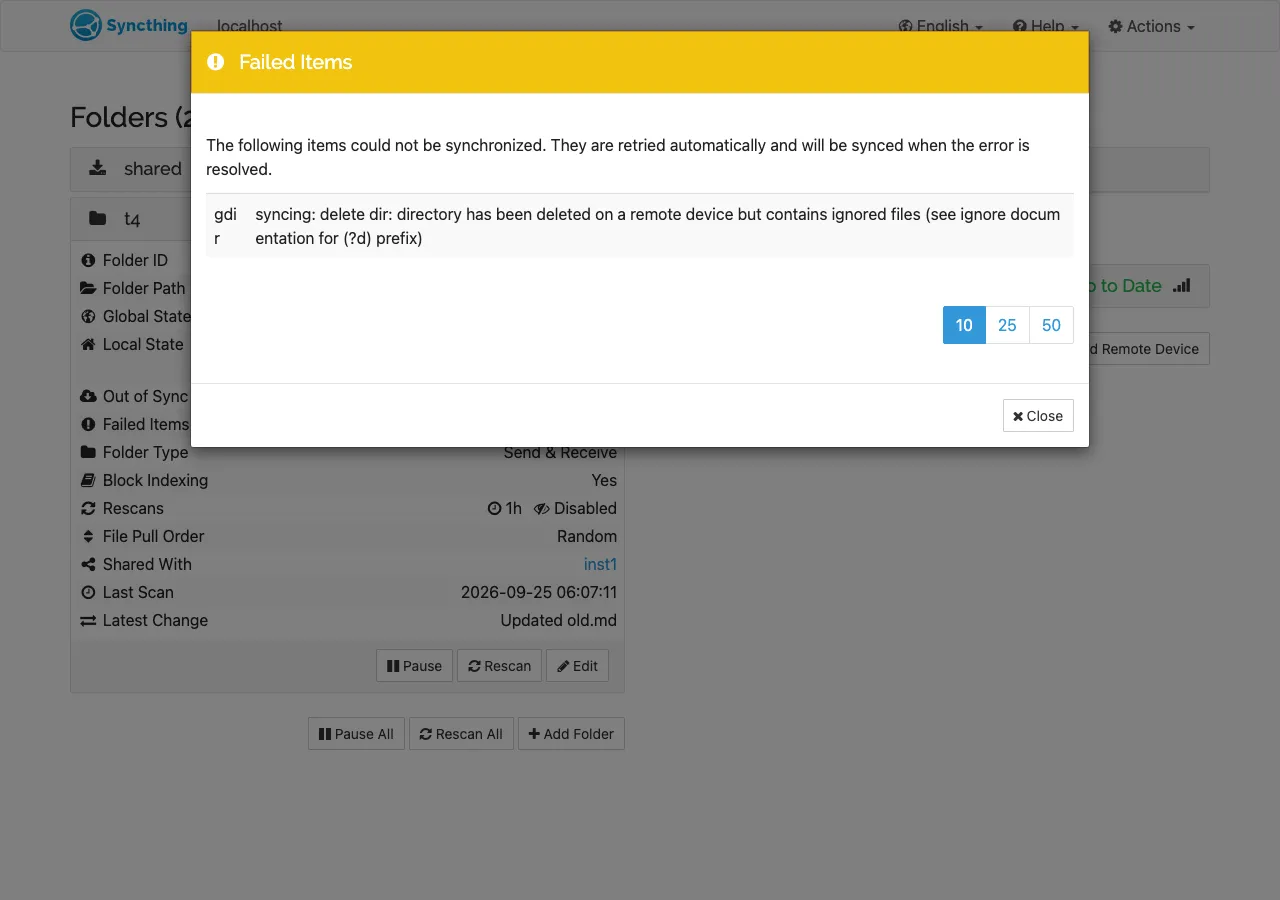
Clicking Failed Items shows the reason in plain words:
On inst1, the remote device inst2 stayed at 95% complete for this folder. It didn’t clear on its own during the rest of the test, about five more minutes.
Then I changed inst2’s pattern from junk to (?d)junk and rescanned. gdir was
deleted within a minute, the failed item disappeared, and inst1 showed inst2 at
100% again. So adding (?d) fixes an already-stuck folder; you don’t have to start
over. Operating-system clutter like .DS_Store is what the docs suggest (?d) for. Don’t put (?d) on patterns that protect files you care about: with it,
those files are deleted along with the folder.
Test 7: ignoring a folder that was already synced
Case H. hold/old.md was synced to both devices. Then on inst1 I added hold/ to
.stignore, created hold/new.md, and later deleted hold/old.md.
inst2 hold/ after new.md was created on inst1:   old.md
inst2 hold/ after old.md was deleted on inst1:   old.md
new.md never arrived, which is expected. The less obvious part: the deletion
didn’t sync either. Once a path is ignored, Syncthing stops sending any change for
it, including deletes, so the other device keeps whatever copy it had. If you want a
folder gone from other devices and ignored afterwards, delete it first, let the
delete sync, then add the ignore pattern.
What I’d do
- When you see a conflict file, compare it with the main file and merge by hand, then delete the conflict file. The suffix ID is the winning device; the content is the losing edit.
- Don’t set
maxConflictsto 0 unless you are sure losing the older of two edits is acceptable. Turn on file versioning if you want a second safety net. - Put shared ignore rules in a synced file (for example
.stglobalignore) and#includeit on every device..stignorealone only covers the device it’s on. - Use
(?d)for OS junk files so deleted folders don’t get stuck on other devices. If a folder is already showing a “contains ignored files” failed item, adding(?d)to that pattern and rescanning cleared it in my test. - Delete first, ignore second when you want a folder removed everywhere and kept out afterwards.
What this test does not cover
- Only Syncthing v2.1.5 on macOS, two instances on one machine, tested on 2026-09-25. Case-insensitive file systems and other operating systems weren’t tested.
- Every folder was Send & Receive. Receive Only and Send Only folders handle local changes differently.
- I tested one conflict per case with a one-minute gap between the two edits. I didn’t test edits with identical modification times, where the docs say the device ID decides.
- In the edit-versus-delete case the edit won. I didn’t find a case where the delete won, so I haven’t seen the “deletion wins” conflict copy the docs mention.
- File versioning was off throughout.