Reset a Forgotten Syncthing GUI Password (v2.1.5)
The password can't be recovered, but you can set a new password: stop Syncthing first, run syncthing generate --gui-password=-, type the new password, then start Syncthing again.
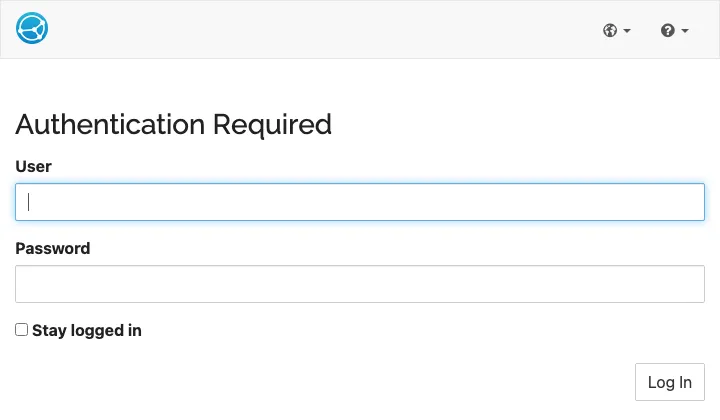
You open the Syncthing web GUI, it asks for a user name and password, and you
don’t remember either. The password can’t be recovered: Syncthing only stores a
bcrypt hash of it (in my config.xml it starts with $2a$10$). You can, however,
set a new one in about a minute.
The official FAQ (written for v2.1.0, read 2026-09-24) covers the basic steps. I ran them on a test instance of Syncthing v2.1.5, and also tried the ways people get it wrong. Two results aren’t in the FAQ.
Short answer (Syncthing v2.1.5, tested 2026-09-24):
- Stop Syncthing first. If you run the reset while it’s running, the command says it worked, but the old password keeps working. The next time Syncthing saves its settings, your new password is thrown away.
- Run
syncthing generate --gui-password=-, type the new password, press Enter, then Ctrl-D. Add--gui-user=NAMEif you forgot the user name too. - Start Syncthing again and log in with the new password.
- Browsers that were already logged in stay logged in. Resetting the password doesn’t end existing sessions, not even after a restart. See below if that matters to you.
Step by step
1. Stop Syncthing
The FAQ gives this command:
syncthing cli operations shutdownIt worked in my test (exit code 0, process gone two seconds later). It reads the API key from your config, so you don’t need the GUI password for it. If you start Syncthing some other way, such as a tray app, a system service or Docker, stop it that way instead. I only tested the command above.
2. Set the new password
syncthing generate --gui-password=-With -, Syncthing reads the password from standard input. Type it, press Enter,
then Ctrl-D. That keeps the password out of your shell history, which
--gui-password=yourpassword doesn’t. Output from my run:
WRN Key exists; will not overwrite (log.pkg=github)
INF Calculated device ID (device=M7H3EMH-… log.pkg=github)
INF Updated GUI authentication password (log.pkg=github)
The Key exists; will not overwrite warning is harmless. generate also
creates device keys on a fresh install, and here it’s telling you it left your
existing ones alone. My device ID was the same before and after, and so were the
folders.
If you don’t remember the user name either, add --gui-user=NAME. That printed
an extra line, Updated GUI authentication user (name=…).
If you use a non-default config location, add the same --home (or --config)
option you normally start Syncthing with. Otherwise generate edits the default
config, not yours.
3. Start Syncthing and log in
After a restart, the new password logged in and the old one was rejected. The
Syncthing log records each rejected attempt as
WRN Bad credentials supplied during API authorization (… username=alice …),
which is also how you can confirm you’re typing the wrong thing.
Where is config.xml?
You only need this if you want to check the file or use the manual method below. The configuration docs (written for v2.1.0, read 2026-09-24) list the defaults:
- macOS:
~/Library/Application Support/Syncthing - Linux and other Unix-like systems:
$XDG_STATE_HOME/syncthingor~/.local/state/syncthing. Installs from before v1.27.0 may still use~/.config/syncthing. - Windows:
%LOCALAPPDATA%\Syncthing
syncthing paths prints the locations it uses. On my Mac the first line was
Configuration file: ~/Library/Application Support/Syncthing/config.xml.
Trap 1: resetting while Syncthing is running
The FAQ says to do this “while Syncthing is not running”. I ran generate while
it was running anyway, to see what happens:
- The command printed
Updated GUI authentication password, just like before, andconfig.xmldid contain the new hash. - The running Syncthing ignored the file. Right after, the new password was rejected and the old one still worked. About a minute later, the new password was still rejected.
- Then I changed an unrelated setting (a download rate limit) through the API, which is the same as saving any change in the GUI. Syncthing wrote its config back to disk and the old password hash replaced the new one. The reset was gone, and nothing in the log said so.
If I restarted Syncthing before any setting was saved, the new password did take effect. Relying on that is a gamble, so just stop it first.
Trap 2: old logins survive the reset
This matters if you’re resetting the password because someone else might know it.
Before any reset, I logged in and kept that browser session (its cookie). Then I reset the password twice, restarted Syncthing each time, and even changed the user name. The old session could still read the API after all of it. I got the same result with and without “Stay logged in” ticked.
According to the configuration docs, a “Stay logged in” session lasts
sessionCookieDurationS, which defaults to 604800 seconds (one week).
Two ways I found to end old sessions:
-
Log out in each browser (Actions → Log Out). That ended the session on Syncthing’s side. A copy of the same cookie stopped working too.
-
End all of them at once. With Syncthing stopped, I changed this line inside
<gui>inconfig.xmlto a value of 5 seconds:<sessionCookieDurationS>5</sessionCookieDurationS>Then I started Syncthing. The old sessions still worked right after the start, but not 8 seconds later. Then I stopped Syncthing, set the value back to
604800and started it again. The old sessions stayed dead, and a fresh login worked.
One detail from testing: a session created a second before I stopped Syncthing did not survive the restart, while sessions that were a minute or more old did. So don’t count on a restart to log anyone out.
The other method: delete the password from config.xml
The FAQ’s alternative is to stop Syncthing and delete the <user> and
<password> lines from the <gui> block of config.xml. I tried it. After a
restart the GUI opened with no login page at all, and the config showed an empty
user and password.
My GUI listens on 127.0.0.1, and the dashboard showed no warning about the
missing password. That’s reasonably safe because only this computer can reach it.
If your GUI address is 0.0.0.0, so other machines can reach it, the
GUI listen address page warns
you should “set a username and a strong password” and use HTTPS. Otherwise,
anyone who can reach that port gets your Syncthing without a password. Set a new
password right away (Actions → Settings → GUI), or just use generate instead.
I didn’t test a 0.0.0.0 address without a password.
What I’d do
- Stop Syncthing, and make sure it’s actually stopped.
syncthing generate --gui-password=-(plus--gui-user=NAMEand your usual--home, if needed).- Start it, log in, and check that the old password no longer works.
- If you’re changing the password for security reasons, also log out every other
browser or use the
sessionCookieDurationStrick above.
What this test does not cover
- Only Syncthing v2.1.5 on macOS, run from the command line with a
config directory set by
--home. I didn’t test Windows, Linux services, Docker or tray apps, which may store the config elsewhere or restart Syncthing automatically. - I didn’t test LDAP authentication, only the built-in user and password.
- The session tests used the GUI’s own login endpoint with saved cookies, not a separate browser on another machine.