Tampermonkey Script Can't Find the Element? 5 Traps I Tested
You write a userscript that clicks a button, and it does nothing. The console says
null, or nothing at all. The button is right there on the screen. The usual cause:
your script ran before the page’s own JavaScript created the button, and nothing
told it to wait.
I tested this on Tampermonkey 5.5.0 in Chrome 154 against a local test page that behaves like a React or Vue app: the HTML loads, then JavaScript inserts a Confirm order button 2 seconds later. Every script below writes to a log box on the page with a timestamp, so you can see exactly when it ran and what it found.
Short answer (Tampermonkey 5.5.0, Chrome 154, tested 2026-09-25):
| What you see | Cause | Fix |
|---|---|---|
| The script doesn’t run at all, no log, no error | Chrome’s Allow User Scripts toggle is off | Turn it on in the extension’s details page (below) |
querySelector returns null | The script ran at DOMContentLoaded. The element is added later by the page’s JavaScript | Wait for it with a MutationObserver (code below) |
Failed to execute 'observe' on 'MutationObserver': parameter 1 is not of type 'Node' | @run-at document-start and you observe document.body, which is still null | Observe document.documentElement instead |
| Works when you reload, not when you click a link inside the site | Single-page app: the URL changes, but the page doesn’t reload, so the script doesn’t run again | @match the whole site and listen for urlchange |
| The element is visible, but the wait times out | It’s inside a shadow root. document.querySelector doesn’t look inside | Query the host’s shadowRoot |
First: is your script running at all?
Before you debug any timing, check that Tampermonkey runs scripts at all. Since Chrome 138, extensions that run user scripts need an extra permission. The Tampermonkey FAQ (read 2026-09-25) says Tampermonkey 5.3+ in a Chrome-based browser needs either the Allow User Scripts toggle or Developer Mode.
In my setup the toggle was off after installing. The script showed as enabled in the dashboard, and it never ran. The only hint is the banner at the top of the Tampermonkey dashboard:

To fix it: right-click the Tampermonkey icon → Manage extension, and turn on Allow User Scripts:

Right after I switched it on, the same script ran on the next page load. I didn’t have to reinstall it or restart Chrome.
Trap 1: the script runs before the element exists
This is the script most people start with:
// ==UserScript==
// @name         Confirm order - naive
// @match        https://example.com/orders*
// @grant        none
// ==/UserScript==
const btn = document.querySelector('#confirm-btn');
btn.click(); // TypeError: Cannot read properties of null (reading 'click')
With no @run-at line, Tampermonkey uses document-idle. According to the
Tampermonkey documentation
(read 2026-09-25), that means “after the DOMContentLoaded event was dispatched”.
Here is what the log showed:
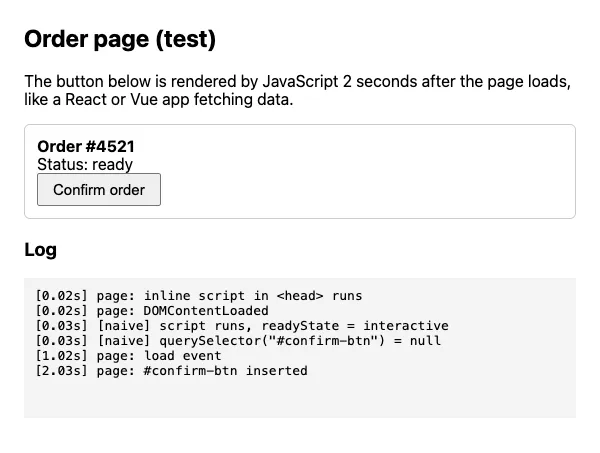
The script ran at 0.03 s. The button showed up at 2.03 s. That’s two seconds too
early, and it would still be too early if the script waited for the load event,
which fired at 1.02 s. On an app that loads its data with JavaScript, “the page has
loaded” and “the element exists” are two different moments. A
GitHub issue on the
Tampermonkey repository describes the same surprise: document-idle ran before the
page was fully loaded.
I also tried all four @run-at values on this page. None of them waits for elements
that JavaScript adds later:
@run-at | When it ran (my test) | document.body |
|---|---|---|
document-start | While the HTML was still loading, readyState loading | null |
document-body | When the <body> arrived, here the same moment as DOMContentLoaded | exists |
document-end | At DOMContentLoaded | exists |
document-idle (default) | At DOMContentLoaded | exists |
For this table I used a second test page where the server sends the <head>, waits
1 second, then sends the <body>. On the small page above, all four ran within the
same few milliseconds. A load listener added by the script fired in all four cases,
which matches the documentation: events that fire after the script is injected are
delivered to listeners you add with window.addEventListener.
The fix: wait for the element with a MutationObserver
A MutationObserver calls you back whenever the page changes. This function checks once, then waits until the element appears, with a timeout so it doesn’t wait forever:
function waitForElement(selector, timeout = 10000) {
  return new Promise((resolve, reject) => {
    const found = document.querySelector(selector);
    if (found) return resolve(found);
    const observer = new MutationObserver(() => {
      const el = document.querySelector(selector);
      if (el) {
        observer.disconnect();
        clearTimeout(timer);
        resolve(el);
      }
    });
    observer.observe(document.documentElement, { childList: true, subtree: true });
    const timer = setTimeout(() => {
      observer.disconnect();
      reject(new Error(`Timed out waiting for ${selector}`));
    }, timeout);
  });
}

waitForElement('#confirm-btn')
  .then(btn => btn.click())
  .catch(err => console.log(err.message));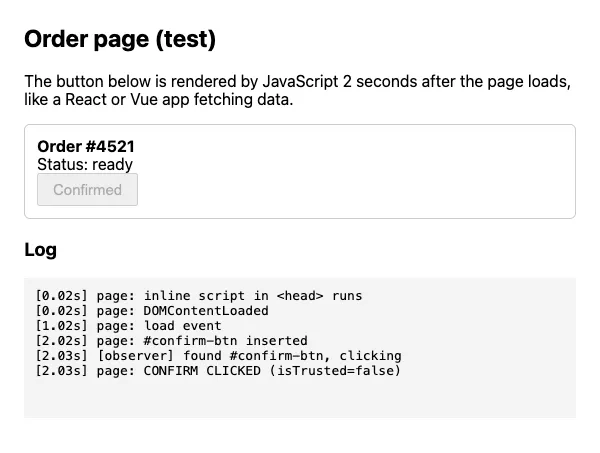
The script found and clicked the button in the same millisecond the page inserted it.
Two details in that function matter:
observer.disconnect()once the element is found. Without it, the callback keeps running on every change to the page for as long as the tab is open.- The timeout. If the selector is wrong, you get a clear message in the console instead of a script that silently waits forever.
Polling works too. A setInterval that checks every 250 ms found the button
after 8 checks, at 2.03 s, and clicked it. That’s simpler to read, but it can be up
to 250 ms late and it keeps checking until you stop it. Either is fine for one
button. I’d use the observer for anything that has to react fast.
Trap 2: document-start and document.body
If you use @run-at document-start (for example to hide an element before it
flashes on screen), document.body doesn’t exist yet. My test script logged
document.body is null, and then the observer line threw:
TypeError: Failed to execute 'observe' on 'MutationObserver': parameter 1 is not of type 'Node'.Fix: observe document.documentElement (the <html> element), as the
function above does. With that change, the same document-start script found and
clicked the button when it appeared.
One more thing I noticed: even with document-start, a small inline script in the
page’s <head> ran before my userscript, in every run. The documentation of the
Content Script API setting explains why: in Chrome, the default mode fetches
userscripts from the background script, with “no real document-start support”. The
UserScripts API Dynamic mode is documented as supporting it. I tried to switch to
that mode in my test profile, but the setting didn’t stay saved, so I couldn’t
verify it. If you need to run before the page’s own scripts, test that mode first.
Trap 3: single-page apps don’t reload
On sites like YouTube, Reddit or most dashboards, clicking a link doesn’t load a new
page. The app changes the URL with history.pushState and redraws part of the page.
Tampermonkey runs your script when a page loads, so it doesn’t see these changes.
My test app has a Home page and an Orders page. The script used
@match .../spa/orders*. When I opened Orders directly, it ran and clicked. When I
opened Home and then clicked the Orders link:
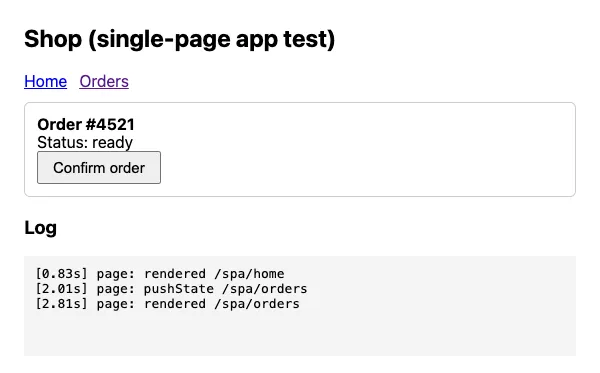
The URL changed to /spa/orders and the button appeared, but the script never
ran, because there was no page load on a URL that matched.
Fix: match the whole app, and react to URL changes. Tampermonkey has a
window.onurlchange
event for this, which you have to request with @grant:
// ==UserScript==
// @name         Confirm order - SPA
// @match        https://example.com/*
// @grant        window.onurlchange
// ==/UserScript==
function onOrdersPage() {
  if (!location.pathname.endsWith('/orders')) return;
  waitForElement('#confirm-btn')           // the function from above
    .then(btn => btn.click())
    .catch(err => console.log(err.message));
}

onOrdersPage();                             // the page you land on
if (window.onurlchange === null) {          // null means the feature is supported
  window.addEventListener('urlchange', () => onOrdersPage());
}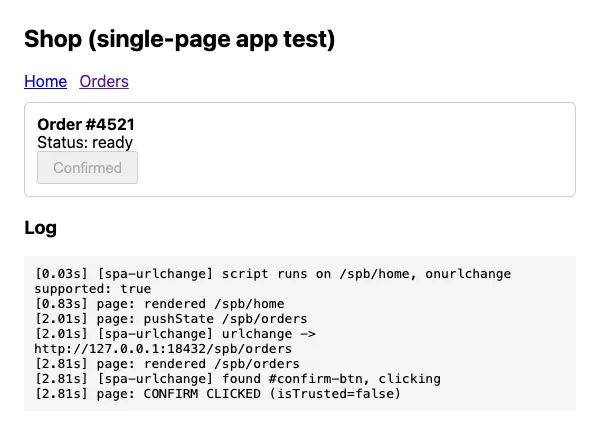
The urlchange event fired right after pushState, so the script started waiting
before the new page was drawn, and clicked the button as soon as it appeared.
One side effect: with any @grant other than none, the script runs in
Tampermonkey’s sandbox. I checked with a test variable that the page defines: with
@grant none, window.log was the page’s function. With @grant window.onurlchange,
window.log was undefined, and unsafeWindow.log was the function. So if your
script uses the page’s own variables, switch those to unsafeWindow.
Trap 4: the element is inside a shadow DOM
Some sites build parts of the page as web components. Their content lives in a
shadow root, and document.querySelector doesn’t search inside it. A
MutationObserver on the document doesn’t see changes inside it either.
My test page puts the button inside an <order-widget> element with an open shadow
root. The waitForElement function from above timed out, although the button was on
the screen:
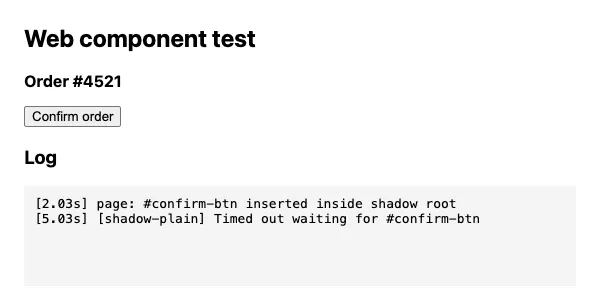
Fix: find the host element, then search inside its shadowRoot. Polling is the
simplest way:
const timer = setInterval(() => {
  const btn = document.querySelector('order-widget')?.shadowRoot?.querySelector('#confirm-btn');
  if (btn) {
    clearInterval(timer);
    btn.click();
  }
}, 250);
That found and clicked the button 20 ms after it appeared. This only works with an
open shadow root. With a closed one, shadowRoot is null and a userscript
can’t reach inside that way. I didn’t test closed shadow roots.
To find out if your element is in a shadow root: in DevTools, look for
#shadow-root (open) above it in the Elements panel.
What I’d do
- Check that the script runs at all. Put
console.log('script loaded')on the first line. No output: check the Allow User Scripts toggle and your@match. - Don’t rely on
@run-atto wait for content. Leave the default and usewaitForElementfor anything the page adds with JavaScript. - If it works on reload but not after clicking around, it’s a single-page app.
Use
window.onurlchange. - If the element is visible and the wait still times out, check for a shadow root.
Test setup and what this doesn’t cover
- Tampermonkey 5.5.0, the version the Chrome Web Store update server delivered
for Chrome 154 on 2026-09-25. I downloaded the package, checked that its signature
and extension ID match the store listing (
dhdgffkkebhmkfjojejmpbldmpobfkfo), and loaded it unpacked into a separate Chrome test profile. A normal install from the Chrome Web Store can behave differently, for example in how the Allow User Scripts toggle is set after installing. Chrome also showed a “Chrome recommends you review this extension” notice, which is specific to unpacked extensions. - Chrome 154.0.8037.57 in headless mode on macOS 15.3.1. Not tested: Firefox, Edge, Safari, Violentmonkey, Greasemonkey.
- All pages were local test pages that I wrote to reproduce each case, not real sites.
- Default Tampermonkey settings, except the interface language, which I set to English. The Dynamic content script mode wasn’t tested (see Trap 2).